
How to enable God Mode in Windows 10 & 11
Enabling God Mode is easy enough to do once you know the steps you need to follow. It’s also a relatively risk-free process, aside from the fact that it puts important settings front and center. If you share your PC with someone who might mess with these settings, you may want to create a separate user account for them without administrator privileges. Here’s how to enable God Mode on Windows 10 & 11:
- Create a new folder on your desktop. To do this, right-click an empty area of the desktop, hover over New and then choose Folder.
- Name the folder GodMode.{ED7BA470-8E54-465E-825C-99712043E01C}. If you’ve already created it with a different name, right-click the folder and choose Rename to change it.
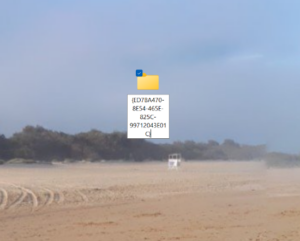
- Once you hit Enter after changing the name, that name will disappear, and the icon should change into a Control Panel icon.

You can now open the folder to access all the settings inside. You’ll find settings for everything from AutoPlay, user accounts, disk optimization, and so on. There are a total of 211 items, but that could vary depending on what version of Windows you’re running.
Tags: God-Mode, Microsoft, Windows